RV Cards
Each RV in your garage is represented by a card — a compact visual summary that lets you scan your collection quickly.
What's on a Card
A typical RV card displays:
| Element | Description |
|---|---|
| Image | The first image uploaded for this RV (or a placeholder if none) |
| Year / Make / Model | The headline — e.g., "2022 Tiffin Allegro Bus" |
| Floorplan | The layout designation, if you've entered one — e.g., "45OPP" |
| Lowest Price | The lowest current asking price across all active listings |
| Mileage | Odometer reading, if known |
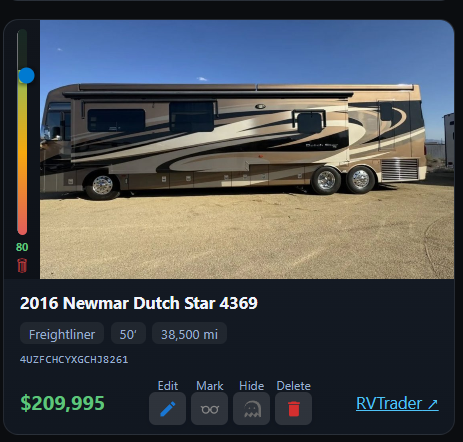
Not every field appears on every card. If you haven't entered mileage, for example, that line simply won't show. The card adapts to what's available. We will be changing the card's contents
Interacting With Cards
Opening the Detail View
Click anywhere on a card (except the action buttons) to open the RV Detail modal. This is where you'll see the full specs, all listings, price history, images, and observations. See RV Details for a complete tour.
Card Action Buttons
Small icon buttons appear on each card:
- Edit ✏️ — Opens the RV editor so you can update specs like mileage, colors, or features
- Mark 👓 — Opens quick status options for the listing: Found, Missing, and Sold
- Hide 👁️ — Hides this RV from the grid without deleting it. Useful for RVs you've decided against but want to keep on record. You can bring them back with the Show Sold/Hidden toggle.
- Delete 🗑️ — Permanently removes the RV and everything associated with it
Adding a Price Directly
Use the Mark button, Enter a price and select Found.
Card Layout
Cards are arranged in a responsive grid:
- Wide screen (desktop) — 3 to 4 cards per row
- Medium screen (tablet) — 2 cards per row
- Narrow screen (phone) — 1 card per row
The grid automatically adjusts, so you don't need to do anything differently on different devices. Editing doesn't work very well on phonoes at this point. We might work on that. The app was designed for desktop and potentially tablet useage.