Managing Listings
A listing represents one place where an RV is for sale. A single RV can have many listings — one on RVTrader, one on the dealer's own website, one on Facebook Marketplace, and so on. By tracking each listing separately, you can compare prices across sellers and keep tabs on where the best deal is. On the main card RVThinker will display the lowest price from your listings.
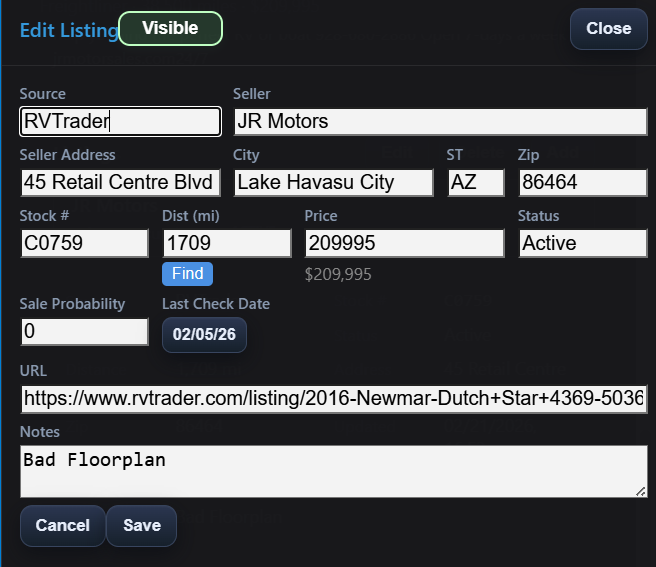
Adding a Listing
- Open an RV's detail view by clicking its card.
- Click Add Listing (or the + button near the listings area).
- Fill in the listing details (described below).
- Click Save.
Listing Fields
| Field | Purpose |
|---|---|
| Source | Where you found it — RVTrader, Facebook, dealer website, etc. |
| URL | A direct link to the listing. Paste the full URL so you can easily jump back to the original page. |
| Seller | The dealership or private seller name. Start typing and RVThinker will suggest sellers you've used before, keeping your data consistent. |
| City / State | Where the RV is located. |
| Distance | How far it is from you. If you and the seller both have zip codes, RVThinker calculates this automatically. |
| Stock Number | The dealer's reference number for this unit. Useful when calling a dealer — "I'm calling about stock number X." |
| Status | Current listing status: Active, Pending, Sold, etc. |
| Sale Probability | Your personal estimate (0–100) of how likely you are to buy this one. Totally subjective — use it however it's useful to you. |
| Price | The first asking price you observed, along with the date. |
| Notes | Freeform text for anything else — "Dealer seems willing to negotiate," "Interior shows wear," etc. |
Seller Suggestions
When you start typing a seller name, RVThinker shows suggestions from your existing data. This is important for consistency — if you've already entered "Lazydays RV Tampa" for another RV, selecting it from the suggestions ensures the name matches exactly. Consistent seller names let you compare RVs across the same dealer easily.
If you enter a new seller that RVThinker doesn't recognize, it may prompt you to save additional dealership details (address, phone, etc.) so that this information is available for future listings.
Editing a Listing
Open the RV's detail view, select the listing you want to change, and click Edit. Update any fields and save. Common reasons to edit:
- The listing URL changed (dealer reorganized their site)
- The RV moved to a different lot (new city/state)
- You want to update the status (Active → Pending → Sold)
- You want to add notes from a phone call or visit
Multiple Listings per RV
When an RV has multiple listings, the detail view shows a dropdown or selector to switch between them. Each listing has its own price history, notes, and status. This is valuable because:
- Different dealers may price the same RV differently — even if it's consignment and physically at only one location
- Listings appear and disappear — an RV pulled from RVTrader might still be on the dealer's own site
- You can track the same RV as it moves between dealers — some RVs get consigned to a new dealer if they don't sell
The multiple-listing model lets you watch the same physical RV from every angle. If it's listed on three sites, track all three. You'll see which seller drops the price first and which one responds to market changes.