Your Garage
The garage is the heart of RVThinker. Every time you sign in, this is where you land. Think of it as a visual dashboard of every RV you're tracking.
What You'll See
The screen has two main areas:
The Toolbar

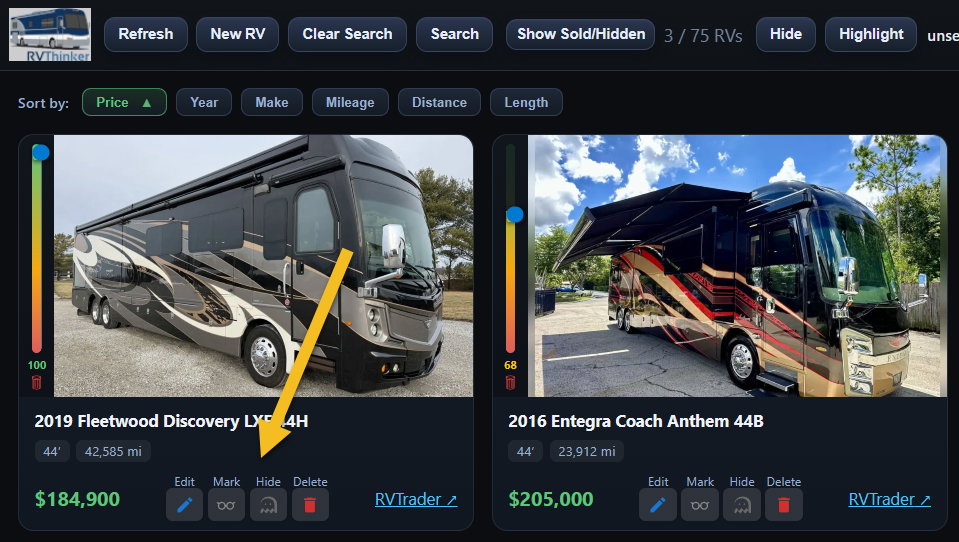
A horizontal bar across the top with:
- Refresh — reloads your RV data from the server
- New RV (+) — opens the form to add a new RV
- Search (🔍) — opens the advanced search modal
- Clear Search — removes any active search filters, showing all RVs again
- Show Sold / Hidden — toggles whether sold or manually-hidden RVs appear in the grid
- Hide / Highlight controls — controls for managing recently-seen RVs (more on this in Hiding RVs)
- RV count — displays something like "12 / 15 RVs" meaning 12 visible out of 15 total garage space
- User menu (☰) — access to messages, settings, profiles, admin, and logout
The RV Grid
Below the toolbar, your RVs are displayed as cards in a responsive grid. Each card is a compact summary of one RV. Cards rearrange themselves based on your screen width — you'll see more columns on a wide monitor and fewer on a phone.
The garage is designed for browsing. You don't need to open every RV to find what you're looking for — the cards show key information at a glance, and sorting puts the most relevant RVs at the top.
Empty Garage
If you don't have any RVs yet, the grid will be empty and you'll be offered demo RVs (see First-Time Setup). Otherwise, click the + New RV button in the toolbar to add your first one.
Quick Actions
Without opening An RV's detail view, you can perform several actions directly from the grid:
- Click a card to open its full detail view
- Edit (pencil icon) to jump straight to editing the RV's specs
- Hide (eye icon) to remove it from the grid without deleting it
- Delete (trash icon) to permanently remove the RV and all its listings
When you delete an RV, all of its listings, price history, observations, and images are also deleted. There is no undo.